
近期,不少小伙伴在更新系统后,遭遇了应用程序提示 “已损坏无法打开” 的困扰。按照以往常规解决办法,即便在系统的 “安全与隐私” 设置中,已明确允许 “任何来源”,可问题依旧存在,应用还是无法正常打开,这着实让人头疼,该如何解决呢?
Recently, many users have encountered the problem that after updating the system, the application prompts “damaged and cannot be opened”. According to the previous method, “Anywhere” has been allowed in the system’s “Security & Privacy”, but the application still cannot be opened. What should we do?

针对 App 在 macOS Catalina 系统下提示已损坏无法打开的情况,以下为大家提供一套详细的解决办法:
Solutions to the problem that an App prompts “damaged and cannot be opened” under macOS Catalina:
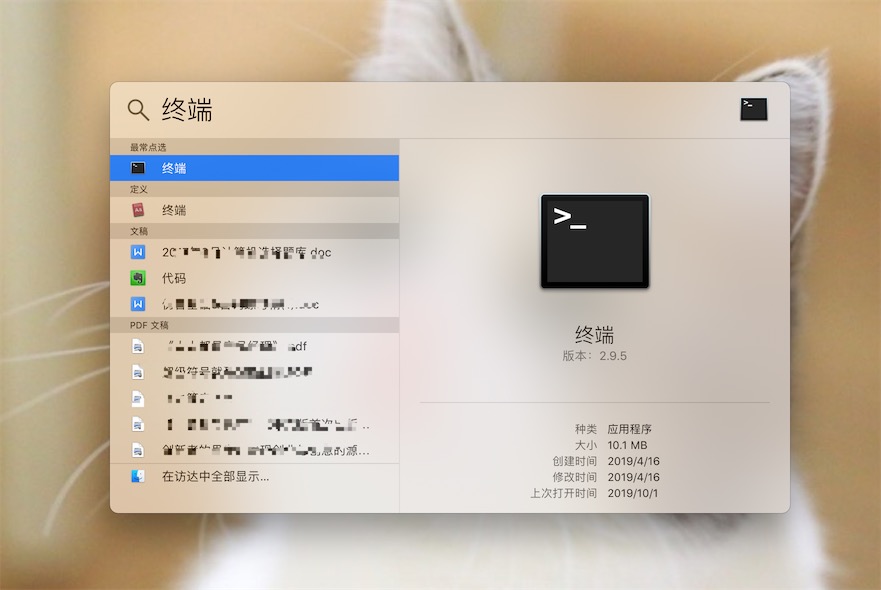
步骤一:开启 “任何来源” 并打开终端
Step 1: Allow “Anywhere” and open the Terminal
步骤二:输入特定命令
Step 2: Enter a specific command
需特别注意:这里的
/Applications/xxxx.app需替换为你实际遇到问题的 App 路径。操作时更为简便的方式是,在输入sudo xattr -d com.apple.quarantine 后,直接将对应的软件拖入终端窗口,系统会自动生成准确路径。It should be noted that the
/Applications/xxxx.app here needs to be replaced with the actual path of the App you are having trouble with. A more convenient way to operate is to directly drag the corresponding software into the Terminal window after entering sudo xattr -d com.apple.quarantine , and the system will automatically generate the accurate path.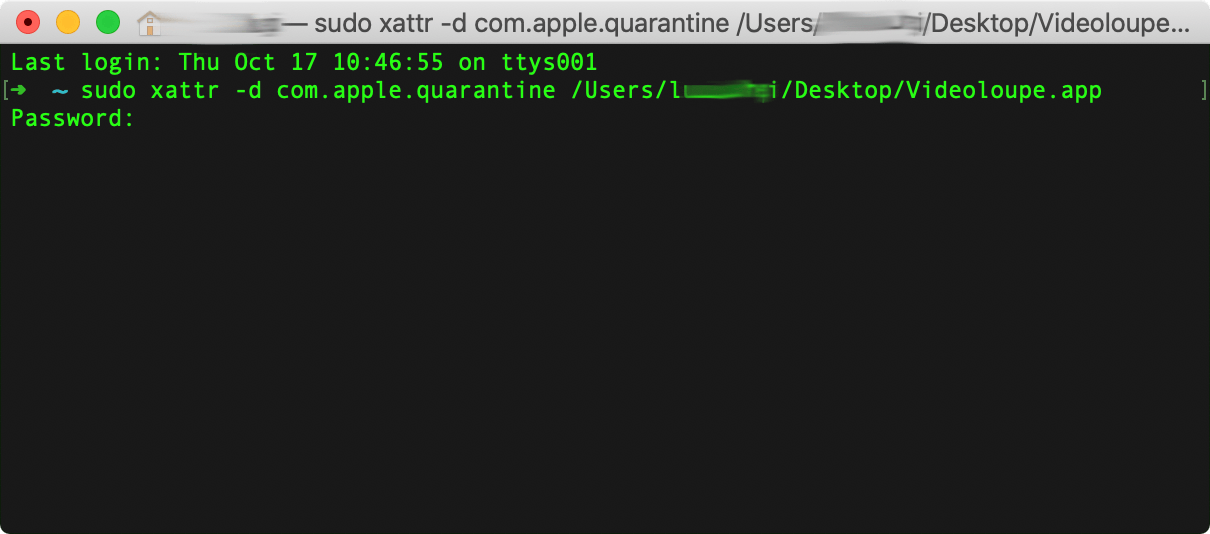
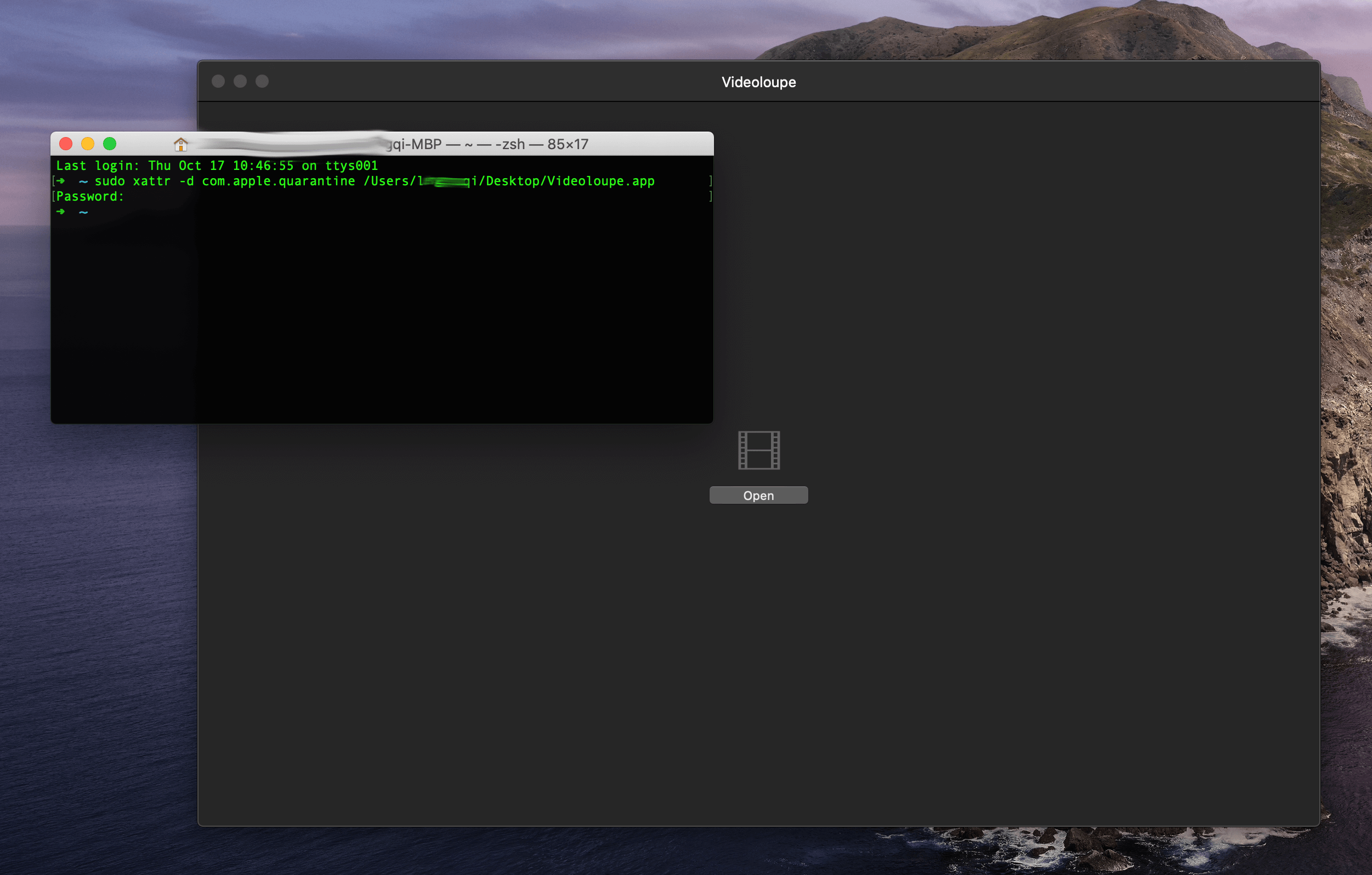
步骤三:重启应用程序
Step 3: Restart the application
声明:本站所有文章,如无特殊说明或标注,均为本站原创发布。任何个人或组织,在未征得本站同意时,禁止复制、盗用、采集、发布本站内容到任何网站、书籍等各类媒体平台。如若本站内容侵犯了原著者的合法权益,可联系我们进行处理。
(adsbygoogle = window.adsbygoogle || []).push({});

评论(36)
?