
在 macOS 系统的世界里,其实蕴藏着众多极为实用却又鲜为人知的隐藏功能。由于种种缘由,这些功能未能引起广大用户的关注,使得我们对苹果电脑所蕴含的诸多前沿技术,大多仅停留在一知半解的层面。接下来,就让我们一同深入探索这些 macOS 系统中实用的小技巧吧!
窗口移动新姿势
当我们正专注于写作时,往往需要打开另一个窗口进行查阅资料等操作,可又不希望它遮挡住正在编辑的窗口。此时,只需轻轻按住 ⌘command 键,再去拖动新打开的窗口,你就会发现窗口移动变得随心所欲,不再干扰当前的工作。
访达工具栏的超凡自定义
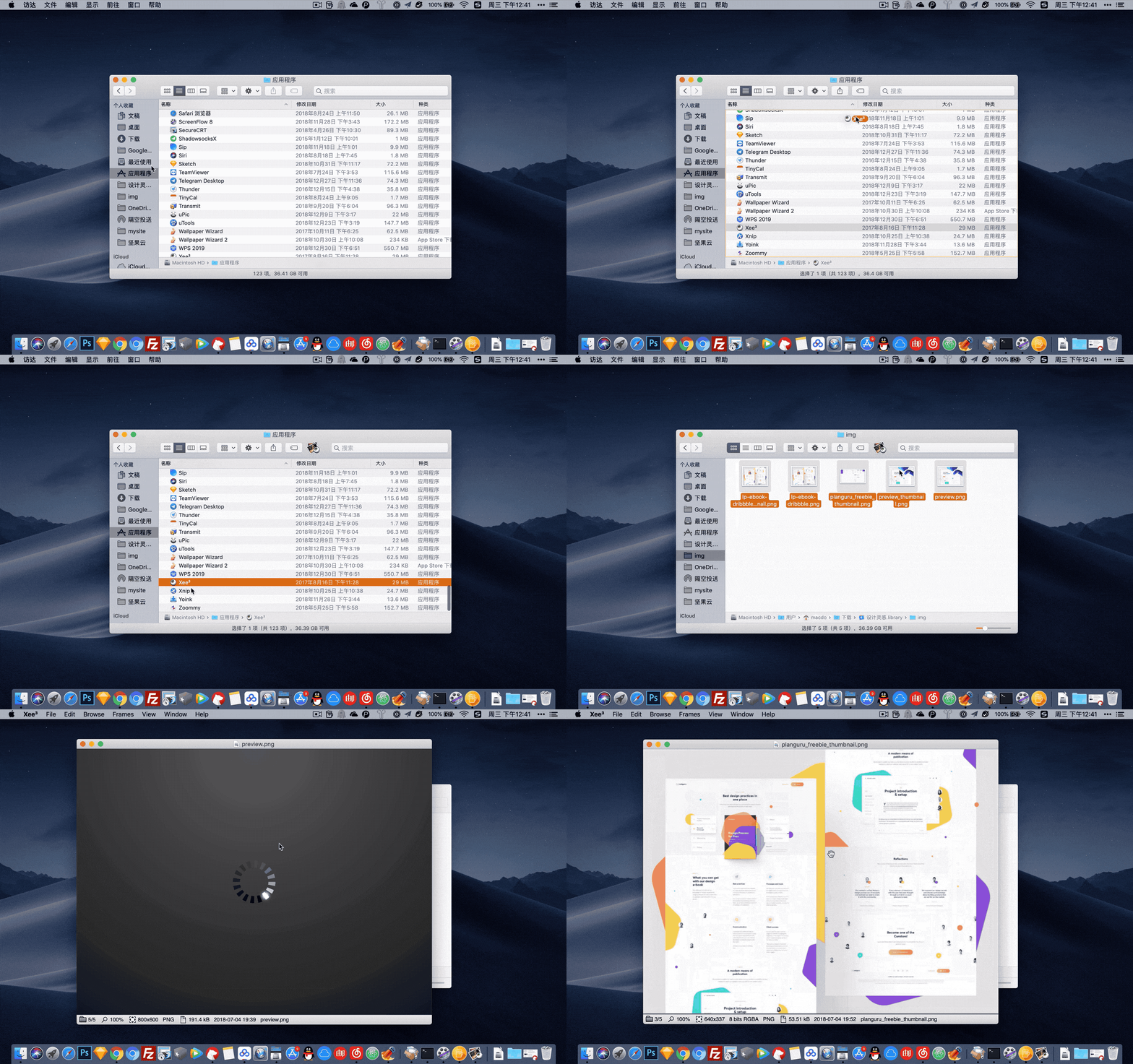
或许你已经知晓访达的工具栏具备自定义功能,但你可能想象不到它还能如此强大。在按住 command 键的同时,你能够将常用的应用程序图标直接放置在工具栏上。如此一来,当你需要打开某个文件时,只需把文件直接拖到相应的应用图标上,就能快速实现文件与应用的关联打开,大大提升操作效率,便捷无比。
自定义快捷键,随心掌控操作
要是你在使用软件时,发现某个常用功能没有现成的快捷键,别担心,我们可以自行添加。以浏览器为例,若想为其添加「管理所有历史记录」的快捷键,需要特别留意的是,在添加过程中,输入的名称必须与软件内该选项的名称完全一致。倘若选项名称后面带有标点符号,那么在添加快捷键时也务必加上,确保精准匹配,这样才能成功设置属于自己的便捷快捷键。
为锁定界面增添个性签名
想让自己的 Mac 电脑锁定界面别具一格吗?只需依次点击「」->「系统偏好设置」->「安全与隐私」,点击界面左下角的「小锁」图标解锁设置。接着勾选「在屏幕锁定时显示信息」选项,然后点击「设定锁定信息」,在弹出的窗口中输入你想要展示的个性内容,就能为锁定界面留下独属于你的个人印记啦。
轻松找回遗忘的 WiFi 密码
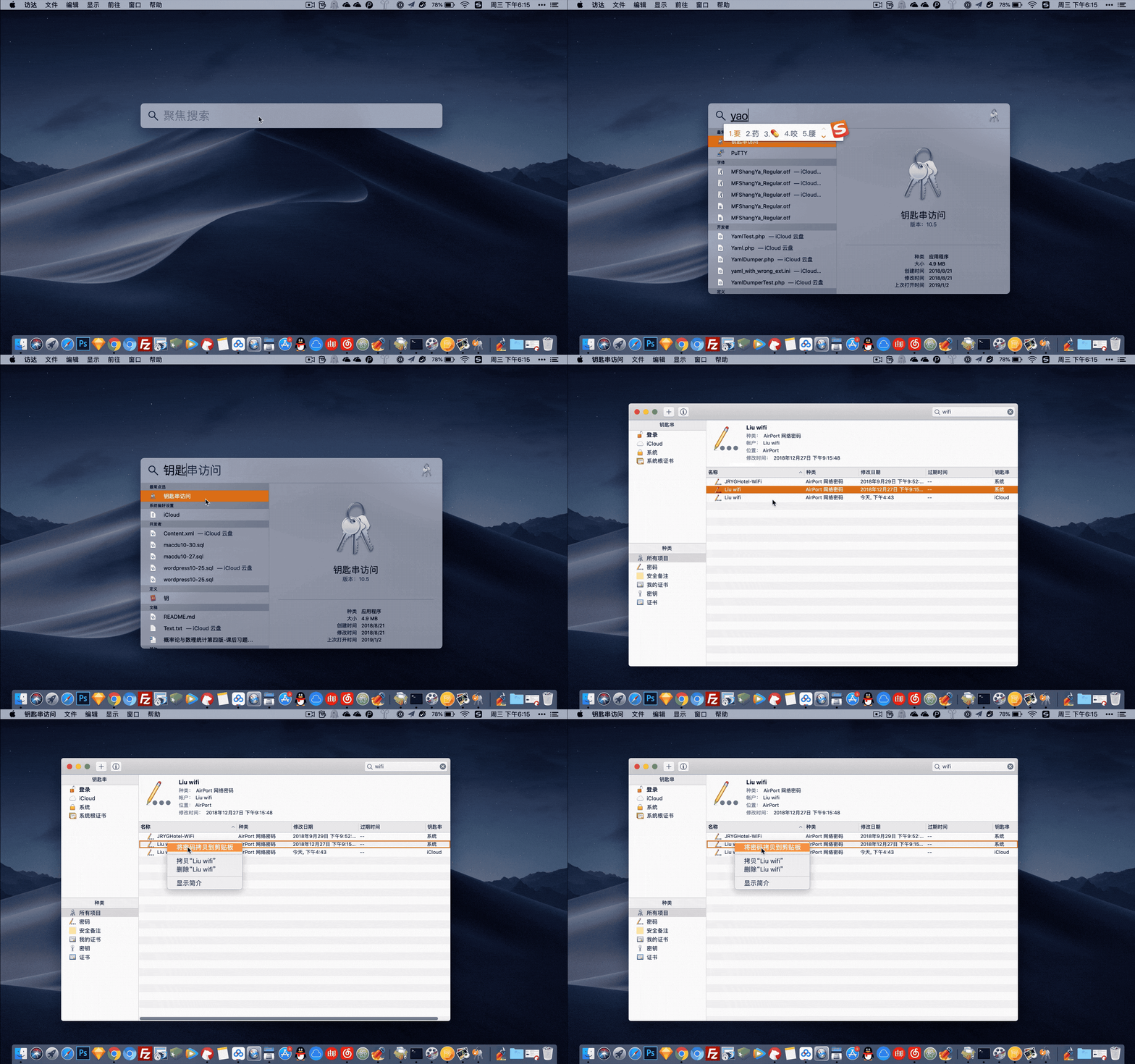
如果你不小心忘记了家中的 WiFi 密码,而你的 Mac 电脑此前又连接过该网络,不必担心,通过「钥匙串访问」这个小工具,就能轻松找到原来的密码。具体操作简单方便,让你不再为忘记密码而烦恼。
In the world of the macOS system, there are actually numerous highly practical yet little – known hidden features. Due to various reasons, these features have failed to attract the attention of most users, leaving us with only a superficial understanding of the many cutting – edge technologies embedded in Apple computers. Next, let’s explore these practical macOS tips together!
A New Way to Move Windows
When we are deeply engaged in writing, we often need to open another window for tasks like looking up information. However, we don’t want it to cover the window where we’re editing. At this point, simply hold down the ⌘command key and then drag the newly opened window. You’ll find that the window can be moved freely without interfering with your current work.
The Superb Customization of the Finder Toolbar
Perhaps you already know that the Finder toolbar can be customized, but you may not imagine how powerful it can be. While holding down the command key, you can directly place the icons of your frequently used applications on the toolbar. In this way, when you need to open a file, just drag the file directly onto the corresponding application icon, and you can quickly associate and open the file, greatly improving operational efficiency. It’s extremely convenient.
Customize Shortcuts for Effortless Control
If you find that a frequently used function in a software doesn’t have a ready – made shortcut key, don’t worry. We can add it ourselves. Take the browser as an example. If you want to add a shortcut key for “Manage All History”, you need to pay special attention that during the addition process, the name you enter must be exactly the same as the option name in the software. If there is a punctuation mark at the end of the option name, you must also include it when adding the shortcut key to ensure an accurate match. This way, you can successfully set a convenient shortcut key for yourself.
Add a Personalized Signature to the Lock Screen
Do you want to make your Mac’s lock screen unique? Just click “” -> “System Preferences” -> “Security & Privacy” in sequence. Click the “small lock” icon in the lower – left corner of the interface to unlock the settings. Then check the option “Show a message when the screen is locked”, and click “Set Lock Message”. Enter the personalized content you want to display in the pop – up window, and you can leave a personal mark on the lock screen.
Easily Retrieve a Forgotten WiFi Password
If you accidentally forget the WiFi password at home and your Mac computer has connected to this network before, don’t worry. You can easily find the original password through the “Keychain Access” tool. The specific operation is simple and convenient, so you no longer have to worry about forgetting the password.
声明:本站所有文章,如无特殊说明或标注,均为本站原创发布。任何个人或组织,在未征得本站同意时,禁止复制、盗用、采集、发布本站内容到任何网站、书籍等各类媒体平台。如若本站内容侵犯了原著者的合法权益,可联系我们进行处理。
(adsbygoogle = window.adsbygoogle || []).push({});

评论(0)